
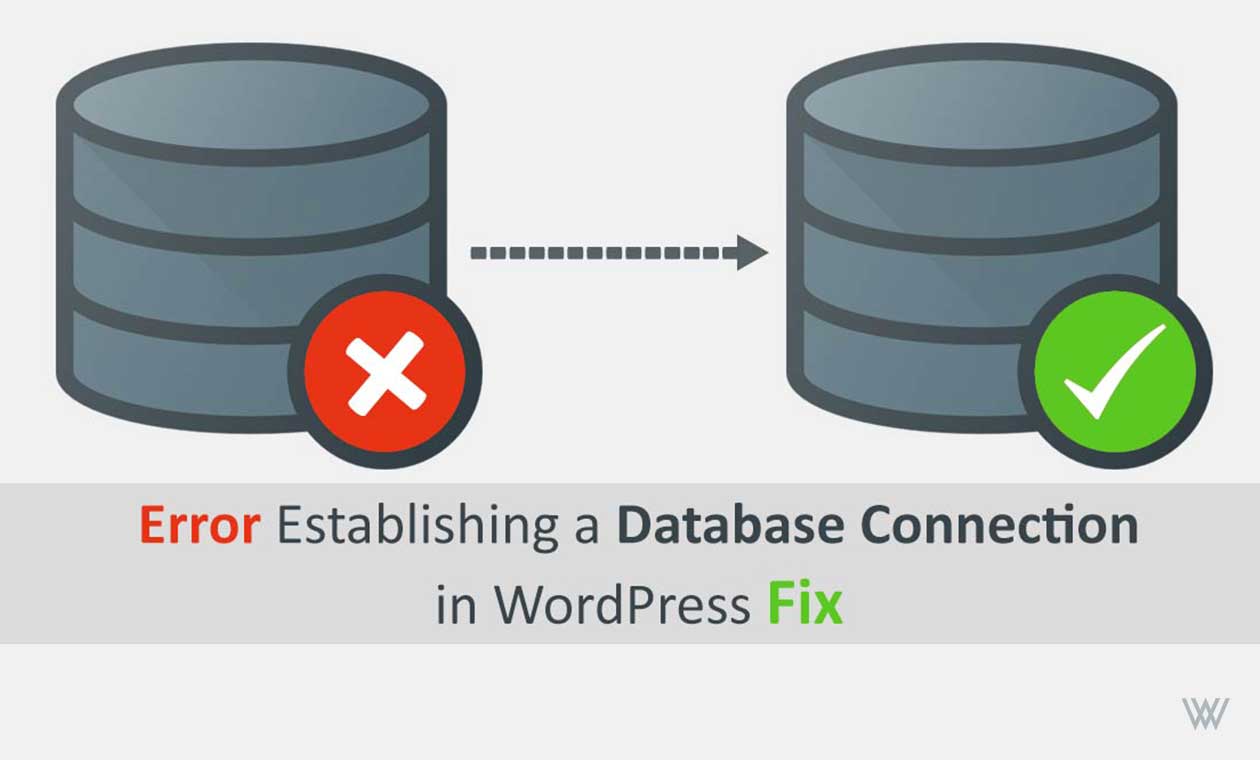
Error Establishing a Database Connection in WordPress Fix
If you look at the WordPress support forum , there are thousands of people are facing this issue "Error Establishing a Database Connection" both on local servers and live websites. What does this error mean? Error establishing a database co...
5 min read
If you look at the WordPress support forum , there are thousands of people are facing this issue "Error Establishing a Database Connection" both on local servers and live websites. What does this error mean? Error establishing a database co...
- What does this error mean?
- Why do we get this error?
- How to Fix Error Establishing a Database Connection in WordPress?
If you look at the WordPress support forum, there are thousands of people are facing this issue "Error Establishing a Database Connection" both on local servers and live websites.
What does this error mean?
Error establishing a database connection in WordPress simply means your website is not able to connect to the database. If you manage a WordPress website, and you are facing the same error, it could be awfully frustrating, especially if you are new to WordPress and does not know what to do and how to do.
It is very much clear that there is a database connection related issue as the error suggests. There could be many reasons behind this error. Sometimes, it takes not more than 2 minutes to repair but it could also waste your 20 minutes.
In this article, I will show you how to fix the error establishing a database connection in WordPress by going through the list of solutions. But before you make any changes in the database, make sure you have all the sufficient backups including website and database.
Why do we get this error?
There could be various reasons. It could be that your database login credentials are wrong. It could be that the database of your website is corrupted. Let’s have a look at how to go about troubleshooting this problem.
How to Fix Error Establishing a Database Connection in WordPress?
Solution 1: Check Database Credentials
First of all, open the root directory of your website and look for the file wp-config.php and look for the following lines and check whether the database name, database username and password are correct or not.
// ** MySQL settings - You can get this info from your web host ** //
/** The name of the database for WordPress */
define('DB_NAME', YourDatabaseName');
/** MySQL database username */
define('DB_USER', 'Username');
/** MySQL database password */
define('DB_PASSWORD', 'YourPassword');
It should work immediately once you enter and save the correct login credentials. If you are still facing the issue, you need to move further and dive into some of the advanced troubleshooting.
Solution 2: Check at Backend/Admin End?
Enter your website URL and then /wp-admin. e.g., www.example.com/wp-admin. If you are getting the same "error establishing database connection" on both front-end and the backend of the website, you need to repair the database.
Repair the website database
You can repair the database by adding the following line in your wp-config.php.
<predefine('WP_ALLOW_REPAIR', true);
Once you update the
wp-config.php
file, you can repair your database by visiting the following page.
Note: Put your domain name in place of http://www.example.com.
The user does not have to be logged in to use this repair functionality. So make sure you remove the define(‘WP_ALLOW_REPAIR’, true); once you are done with the database repair.
If this repair does not fix the problem, check the next troubleshooter.
Solution 3: Check The wp-config.php File
It is certainly the most important file in the entire WordPress. It has got all the details to connect your WordPress website to the database. So you need to look for some of the key configurations. You need to cross-check whether configuration in the wp-config.php is right or not. Once again check the following lines including DB_HOST:
define('DB_NAME', 'database-name');
define('DB_USER', 'database-username');
define('DB_PASSWORD', 'database-password');
define('DB_HOST', 'localhost');
Remember one thing, DB_HOST value in most of the cases is localhost. But it is not necessary. Depending upon the host the value might be different.
You can try fixing this issue by putting the IP to DB_HOST. Somewhat like this:
define('DB_HOST', '127.0.0.1:8889');
It can also solve your problem but the IP for different web hosts services are different. So if you are thinking of using an IP address, make sure you contact your host and confirm the IP before you proceed.
Solution 4: Check MySQL Server
You can check some other sites using your MySQL server database. If those websites still showing the database error, there might be an issue with your MySQL Server, and you need to contact your host to repair it.
If you do not have any other website to test, simply go to your cPanel and try accessing phpMyAdmin and connect. If you get connected to your phpMyAdmin, means no problem with your MySQL Server.
Now you need to verify whether the user-defined for your database has sufficient privilege to access the database or not. To check that you need to create a new file called testconnection.php inside the root directory of your website. Once you are done with creating a file, just copy and paste the following lines of code into testconnection.php:
<?php $link = mysql_connect('localhost', 'root', 'password'); if (!$link) { die('Could not connect: ' . mysql_error()); } echo 'Connected successfully'; mysql_close($link); ?>
Make sure you are using the right username and the password. If you are connected successfully, the user must have sufficient permission to access the database. Now, go to your wp-config.php and make sure database credentials are correct, similar to what you have typed intestconnection.php.
If you go to phpMyAdmin and still cannot connect to the database, it means that there might be some issue with your server.
In case you get an error #1045 – Access denied for user ‘foo’@’%’ (using password: YES). I would advise you to contact your host to fix the error.
You may also like
- Speed Up WordPress Website: 10 Awesome Techniques
- Best WordPress Permalink Structure Guide for better SEO
- 6 WordPress Security Tips: Prevent WordPress XMLRPC Attacks
I hope this post will be useful to get rid of this error. Do you have another method of fixing this error? Share with us in the comment section below or email me at [email protected].
Rajesh Ray
I’m Rajesh Rai, a full-stack developer, Linux administrator, and technology enthusiast passionate about making complex technology easier to understand and use.
Related Technical Guides
Tested runbooks, server administration walkthroughs, and troubleshooting guides
How to Install PDO Extension in PHP
PHP Data Objects (PDO) is one of the most important extensions in PHP for working with databases in a secure, consistent, and modern way. If you are building dynamic websites, APIs, CMS platforms, or enterprise applications, PDO is not opti...

How To Run XAMPP and IIS Together On the Same Machine
How to run XAMPP and IIS together on the same machine? Well, working together on both IIS & XAMPP can really be a tricky task for beginners. The main aim of this article is to help beginners to get XAMPP Apache Server and IIS server works t...
How To Install Nginx on Ubuntu Server: 4 Simple Steps
This guide covers an easy to follow, step-by-step guide on how to install Nginx on Ubuntu Server 18.04 LTE, 16.04, and 14.04. While writing this tutorial I used Ubuntu 18.04 LTE though these resources in the tutorial are useful in installin...
25 Best Linux Commands Every Sysadmin Should Know
If you’ve spent any time managing Linux servers, you already know this truth: the command line is not optional. It’s where real troubleshooting happens, where performance issues are understood, and where outages are prevented before users e...

How to Fix Snapd Consuming High CPU / RAM on Linux
If you’ve ever opened your system monitor and noticed snapd quietly eating up your CPU or RAM, you’re not alone. Many Linux users—especially on Ubuntu and Ubuntu-based distributions—eventually run into this issue and wonder what’s going on ...
How to Fix SSH Connection Refused Error on Linux: 10 Simple Ways
If you’ve ever tried connecting to a Linux server using SSH and been hit with the frustrating message: ssh: connect to host x.x.x.x port 22: Connection refused You’re not alone. This error is one of the most common (and confusing) issues Li...
How to Reset Forgotten Ubuntu User Password: 10 Simple Steps
Forgetting your Ubuntu user password can feel like hitting a wall—especially when the system refuses to let you log in and you have important work waiting inside. Fortunately, Ubuntu provides a safe and effective recovery mechanism that all...
How to Fix Broken Packages in Ubuntu: 7 Simple Ways
If you’ve been using Ubuntu for a while, chances are you’ve run into package-related issues at least once. A failed update, an interrupted installation, or conflicting dependencies can easily leave your system in a messy state. When that ha...
Fix E: Unable to Locate Package Error on Ubuntu: 11 Simple Ways
If you’ve used Ubuntu for any length of time, chances are you’ve run into this frustrating message at least once: E: Unable to locate package <package-name> It usually appears right when you’re trying to install something important—Docker, ...
How to Fix 413 Request Entity Too Large NGINX & Kubernetes
How to fix 413 Request Entity Too large nginx kubernetes? Modern day applications routinely handle substantial file uploads—from high-resolution media assets to comprehensive data exports. When deploying these applications on Kubernetes wit...
Join the Conversation & Perspective
Have thoughts, counterpoints, or reflections on this story? Engage directly with fellow readers and editorial contributors.
No comments on this guide yet. Be the first to share your thoughts or ask a question!