
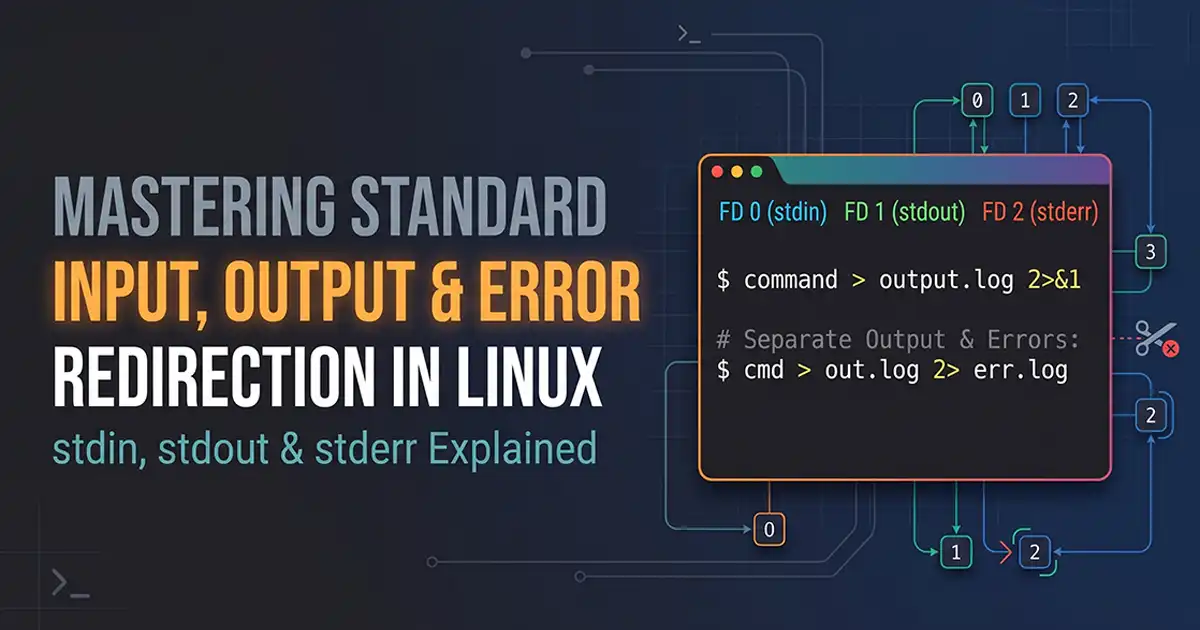
Mastering Standard Input, Output, and Error Redirection in Linux
Learn how standard input, standard output, and standard error work in Linux. Explore file descriptors, redirection operators, pipes, and practical commands for managing command output and error logs.
13 min read
Learn how standard input, standard output, and standard error work in Linux. Explore file descriptors, redirection operators, pipes, and practical commands for managing command output and error logs.
- Understanding Standard Input, Output, and Error in Linux
- Understanding Linux File Descriptors
- Linux Input and Output Redirection Operators
Every command executed in a Linux terminal interacts with data streams. Whether you are filtering application logs, automating server backups via cron jobs, or debugging a failing deployment script, understanding Linux stdin stdout stderr redirection is fundamental to effective system administration and DevOps engineering.
By default, Linux commands read input from your keyboard and print both normal output and error messages directly to your terminal screen. While this default behavior works for interactive sessions, automated scripts and production environments require precise control over where data originates and where output lands.
Linux input output redirection allows you to intercept these data streams—routing normal output to log files, separating diagnostic errors for troubleshooting, feeding file contents directly into utilities, or discarding noisy output altogether.
1. Understanding Standard Input, Output, and Error in Linux
In Linux and Unix-like operating systems, every running process is automatically initialized with three communication channels known as standard streams. These streams act as standardized pipelines connecting a command to its execution environment.
With Linux standard streams explained simply, everything in Linux is treated as a file—including hardware devices like keyboards and terminal displays. Each stream is tracked by the kernel using a numeric identifier called a file descriptor (FD).
A. Standard Input (stdin)
What is stdin in Linux? Standard input (stdin) is the data stream that feeds information into a command or program.
- File descriptor: 0
- Default source: The user's keyboard (via the terminal).
- Purpose: Supplies text or data input to commands waiting for user interaction or piped data.
When you run an interactive command like cat or read without arguments, the shell pauses and waits for data from stdin. Once you type text and press Enter, that input travels through file descriptor 0 into the utility.Bash
# Example: 'tr' reads lowercase input from stdin and converts it to uppercase
tr 'a-z' 'A-Z' < /etc/hostname
B. Standard Output (stdout)
What is stdout in Linux? Standard output (stdout) is the default stream where a program writes its normal, expected execution results.
- File descriptor: 1
- Default destination: The user's terminal display.
- Purpose: Displays successful command output, status reports, and processed text.
When you run ls, echo, or uname -a, the text printed on your screen is delivered via stdout. Separating normal output from errors ensures that clean data can be saved to files or passed to other programs without being corrupted by warning messages.Bash
# Example: 'echo' writes normal text to stdout (FD 1)
echo "Database backup completed successfully."
C. Standard Error (stderr)
What is stderr in Linux? Standard error (stderr) is a dedicated output stream reserved specifically for error messages, warnings, and diagnostic logs.
- File descriptor: 2
- Default destination: The user's terminal display.
- Purpose: Outputs diagnostic messages independently of
stdoutso errors remain visible even when normal output is redirected elsewhere.
Although both stdout and stderr print to your terminal screen by default, they travel on completely separate channels. If a command fails—such as attempting to list a directory that does not exist—the resulting error message is emitted via file descriptor 2.Bash
# Example: Requesting a missing path triggers an error message on stderr (FD 2)
ls /nonexistent_directory
D. Comparison of Linux Standard Streams
| Stream Name | Abbreviation | File Descriptor | Default Device | Primary Purpose |
| Standard Input | stdin | 0 | Keyboard | Sends input data into a program |
| Standard Output | stdout | 1 | Terminal Screen | Outputs normal execution results |
| Standard Error | stderr | 2 | Terminal Screen | Outputs errors and diagnostic messages |
2. Understanding Linux File Descriptors
How do Linux file descriptors work? A file descriptor is a non-negative integer that the Linux kernel assigns to every open file, socket, pipe, or data stream associated with a process. Instead of referencing file paths repeatedly, programs read from and write to these integer handles.
A. How Linux Assigns File Descriptor Numbers
When a new process starts, the kernel reserves the first three numbers for Linux file descriptor 0 1 2:
- 0 is permanently mapped to
stdin. - 1 is permanently mapped to
stdout. - 2 is permanently mapped to
stderr.
Every process maintains its own file descriptor table inside the virtual /proc filesystem. You can inspect the active descriptors of your current shell session by listing /proc/$$/fd (where $$ represents the current shell's Process ID):Bash
ls -l /proc/$$/fd
On a standard interactive pseudo-terminal (such as /dev/pts/0), descriptors 0, 1, and 2 all point to the same terminal device file.
B. Custom File Descriptors (3 Through 9)
Beyond 0, 1, and 2, Linux processes can open additional files assigned sequentially starting at 3. In shell scripting, file descriptors 3 through 9 are available for custom assignment using the exec built-in command. This allows administrators to open persistent log files or input streams without repeatedly opening and closing files on disk.Bash
# Open custom file descriptor 3 for writing to a persistent log file
exec 3> custom_session.log

# Write directly to file descriptor 3 using >&3
echo "Initializing deployment step 1" >&3
date >&3

# Close file descriptor 3 when finished
exec 3>&-
Understanding that shell redirection simply changes where these numeric pointers aim in the kernel's file table makes complex redirection syntax completely predictable.
3. Linux Input and Output Redirection Operators
Shell redirection operators instruct the shell to intercept standard file descriptors before executing a command, pointing them toward files or devices instead of the terminal screen.
A. Output Redirection Using >
How to redirect standard output in Linux? Use the single greater-than operator (>) to redirect stdout in Linux (file descriptor 1) to a file. Notice that > is shorthand for 1>.Bash
ls > output.txt
If output.txt does not exist, the shell creates it. If the file already exists, > immediately truncates (overwrites) the file before the command even runs. Any previous data inside the target file is permanently lost.
B. Append Output Using >>
What is the difference between > and >> in Linux? While > overwrites the target file from the beginning, the double greater-than operator (>>) allows you to Linux append output to file by preserving existing content and adding new output to the end of the file.Bash
echo "Hello Linux" >> output.txt
If output.txt does not exist, >> creates it automatically. Using >> is essential for continuous logging where historical entries must be retained.
C. Input Redirection Using <
How to redirect input from a file in Linux? The less-than operator (<) is used to redirect stdin from file (file descriptor 0), instructing a command to read its input from a specified file rather than waiting for keyboard entry.Bash
sort < names.txt
While many Linux utilities accept a filename directly as an argument (e.g.,sort names.txt), certain commands and shell loops rely strictly on stdin. You can also combine input and output redirection in a single command:Bash
# Read from names.txt via stdin and write sorted results to sorted_names.txt via stdout
sort < names.txt > sorted_names.txt
D. File Descriptor Redirection Using 2>
How to redirect standard error to a file in Linux? Because the standard > operator only affects file descriptor 1 (stdout), error messages still print to your screen. To redirect stderr in Linux separately, prefix the operator with file descriptor 2:Bash
ls /nonexistent 2> errors.txt
When this command runs, no output appears in the terminal. The shell intercepts file descriptor 2 and writes ls: cannot access '/nonexistent': No such file or directory directly into errors.txt, overwriting the file if it already exists.
E. Append Error Output Using 2>>
To append error messages to an existing diagnostic log without overwriting prior errors, use 2>>:Bash
ls /nonexistent 2>> errors.log
All valid file matches print normally to the terminal via stdout, while error messages are quietly appended to the bottom of errors.log.
F. Redirecting Output to /dev/null
In Linux,/dev/null is a special virtual device—often called the "bit bucket" or black hole—that immediately discards everything written to it and returns an end-of-file (EOF) when read. System administrators frequently redirect errors to /dev/null or silence verbose commands inside automated scripts.How do I suppress Linux command errors? Redirect file descriptor 2 to /dev/null:
- Discard normal output (
stdout) only:Bashcommand > /dev/nullNormal output is discarded; only error messages (stderr) appear on the terminal screen. - Discard error messages (
stderr) only:Bashcommand 2> /dev/nullError messages (such as "Permission denied") are discarded; valid output (stdout) still appears on the terminal screen. - Discard both normal output and error messages (
stdoutandstderr):Bashcommand > /dev/null 2>&1Complete silence; both normal output and diagnostic errors are discarded. This is ideal when checking only a command's exit status ($?).
4. How to Redirect stdout and stderr Together
How do I redirect stdout and stderr? In production environments and cron jobs, you often need to redirect stdout and stderr to file so that both normal execution steps and unexpected errors are captured in a unified log. Linux provides four primary patterns to manage combined streams.
A. Method 1: Using 2>&1 (POSIX Portable Standard)
What does 2>&1 mean in Linux? The 2>&1 operator is a file descriptor duplication instruction. It tells the shell: "Redirect file descriptor 2 (stderr) to the exact same destination where file descriptor 1 (stdout) is currently pointing."To capture both streams into a single file (overwriting existing content), point stdout to the file first, then duplicate stderr onto stdout:Bash
command > output.log 2>&1
This syntax is 100% compliant with the POSIX standard and works across every Linux shell, including sh, dash, bash, ksh, and zsh.
B. Method 2: Using &> (Bash-Specific Shorthand)
If you are working interactively in Bash or writing scripts explicitly declared with #!/bin/bash, you can use the shorthand &> operator to redirect both stdout and stderr simultaneously:Bash
command &> output.log
Portability Warning: The &> operator is Bash-specific syntax rather than POSIX shell syntax. It is not supported by strict POSIX shells like /bin/sh or dash (the default system shell on Debian and Ubuntu). In a POSIX shell, command &> output.log will instead run command in the background (&) and create an empty output.log file. For portable scripts and cron jobs, always use > output.log 2>&1.
C. Method 3: Using Separate Files for Output and Errors
How to redirect command output and errors separately? You can specify independent redirection targets for file descriptor 1 and file descriptor 2 in the same command:Bash
command > output.log 2> errors.log
Splitting streams is preferable for large batch operations, database migrations, or file transfers. It allows automated monitoring tools to alert administrators only when errors.log is non-empty, without having to parse thousands of lines of normal execution output in output.log.
D. Method 4: Appending Both Streams
To append both normal output and error messages to an existing log file without overwriting historical data, combine >> with 2>&1:Bash
command >> output.log 2>&1
In Bash-only environments, the shorthand append equivalent is command &>> output.log, though >> output.log 2>&1 remains the recommended portable standard.
5. Understanding Redirection Order in Linux
One of the most frequent points of confusion in Linux stdin stdout stderr redirection is why operator placement changes command behavior completely.Consider these two commands that look nearly identical:
command > output.log 2>&1(Correct: Captures both streams inoutput.log)command 2>&1 > output.log(Incorrect: Only capturesstdoutinoutput.log;stderrstill prints to the terminal)
The Linux shell evaluates redirection operators strictly from left to right before executing the command, and 2>&1 copies the current target of file descriptor 1 at the exact moment it is evaluated.
A. Step-by-Step Execution: command > output.log 2>&1 (Correct Order)
- Initial State: Before parsing redirections, both FD 1 (
stdout) and FD 2 (stderr) point to the terminal screen. - First Redirection (
> output.log): The shell reads> output.logand updates FD 1 (stdout) to point tooutput.log. At this moment, FD 1 points tooutput.logand FD 2 points to the terminal. - Second Redirection (
2>&1): The shell reads2>&1and points FD 2 (stderr) to wherever FD 1 is currently pointing (output.log). - Final Result: Both FD 1 and FD 2 point to
output.log. All normal output and error messages are written into the file.
B. Step-by-Step Execution: command 2>&1 > output.log (Incorrect Order)
- Initial State: Both FD 1 (
stdout) and FD 2 (stderr) point to the terminal screen. - First Redirection (
2>&1): The shell reads2>&1first. Because FD 1 is still pointing to the terminal, the shell points FD 2 (stderr) to the terminal. At this moment, both FD 1 and FD 2 still point to the terminal. - Second Redirection (
> output.log): Next, the shell reads> output.logand updates FD 1 (stdout) to point tooutput.log. This does not retroactively change FD 2. - Final Result: FD 1 writes to
output.log, while FD 2 continues printing errors to the terminal screen.
6. Using Pipes with Linux Redirection
While redirection operators (>, >>, <) connect commands to files, Linux pipe and redirection workflows use a pipe (|) to connect the output of one command directly to the input of another command.
A. How Pipes Pass Standard Output Between Commands
When you chain commands using a pipe (command1 | command2), the shell connects stdout (FD 1) of command1 to stdin (FD 0) of command2 via an in-memory kernel buffer:Bash
ls -l | grep ".txt"
B. Why stderr Is Not Automatically Passed Through a Standard Pipe
By design, a standard pipe (|) only forwards stdout (FD 1). Standard error (stderr, FD 2) bypasses the pipe completely and prints directly to the terminal screen. This prevents unexpected error messages from corrupting data pipelines (for example, preventing a "Permission denied" message from being counted as a valid line or parsed as data by downstream tools like awk or jq).
C. Using 2>&1 with Pipes and tee
If you want to filter, inspect, or log both normal output and error messages through a pipeline, merge stderr into stdout before the pipe passes the stream to the next command:Bash
command 2>&1 | tee output.log
The tee utility reads from stdin and splits the stream in two directions—printing it to stdout (your terminal screen) while simultaneously writing it to output.log. To append to the file instead of overwriting it, use tee -a output.log.
D. Bash-Specific |& Syntax vs. POSIX Alternatives
In Bash 4.0 and newer, you can use the shorthand |& operator to pipe both stdout and stderr to the next command:Bash
# Bash-specific shorthand for '2>&1 |'
command |& tee output.log

# Portable POSIX alternative (works in sh, dash, and bash)
command 2>&1 | tee output.log
7. Practical Linux Redirection Examples
Below are 12 real-world Linux output redirection commands and patterns used daily in system administration, shell scripting, and DevOps workflows.
A. Save Command Output to a File
- Command:Bash
df -h > disk_usage_report.txt - Explanation: Runs
df -hto check human-readable disk space and redirectsstdout(FD 1) todisk_usage_report.txt. - Expected Behavior: Nothing is printed to the terminal. The file
disk_usage_report.txtis created (or overwritten) with the current filesystem usage table. - Practical Use Case: Generating a clean snapshot of server storage capacity before performing a major package upgrade.
B. Append Command Output to an Existing File
- Command:Bash
uptime >> server_load_audit.log - Explanation: Uses the
>>operator to add the current system uptime and load averages to the end ofserver_load_audit.log. - Expected Behavior: Existing lines in
server_load_audit.logremain untouched, and a new timestamped load entry is added at the bottom. - Practical Use Case: Tracking system load averages over time via a scheduled cron job that runs every 15 minutes.
C. Save Errors Separately
- Command:Bash
du -sh /var/* 2> du_access_errors.log - Explanation: Calculates directory sizes in
/varwhile redirecting onlystderr(FD 2) todu_access_errors.log. - Expected Behavior: Accessible directory sizes display cleanly in the terminal, while "Permission denied" errors for restricted directories are saved to
du_access_errors.log. - Practical Use Case: Auditing disk usage as a non-root user without cluttering terminal output with permission warnings.
D. Save Both stdout and stderr in One File
- Command:Bash
systemctl status nginx > nginx_full_check.log 2>&1 - Explanation: Directs
stdouttonginx_full_check.logand duplicatesstderr(2>&1) into the same file. - Expected Behavior: Whether the Nginx service is active (
stdout) or missing/failed (stderr), the complete diagnostic message is saved insidenginx_full_check.log. - Practical Use Case: Capturing comprehensive service health checks during automated post-deployment verification.
E. Discard Normal Output
- Command:Bash
tar -czf /backup/home_archive.tar.gz /home > /dev/null - Explanation: Routes
stdoutto/dev/nullwhile leavingstderrattached to the terminal. - Expected Behavior: Normal informational messages are suppressed; the terminal stays blank unless
tarencounters a file read error or warning. - Practical Use Case: Running backup commands where you only want output if an unexpected error occurs.
F. Discard Error Messages
- Command:Bash
find / -name "php.ini" 2> /dev/null - Explanation: Searches the entire filesystem for
php.iniand routes allstderrmessages (FD 2) to/dev/null. - Expected Behavior: Hundreds of "Permission denied" errors from
/proc,/sys, and/rootare discarded, leaving only the exact file paths wherephp.iniis located. - Practical Use Case: Locating configuration files across a server as a standard user without error spam.
G. Discard Both stdout and stderr
- Command:Bash
grep -q "ERROR" /var/log/syslog > /dev/null 2>&1 - Explanation: Sends
stdoutto/dev/nulland duplicatesstderrto/dev/null(2>&1), silencing the command completely. - Expected Behavior: No output or missing-file error is ever printed, allowing a script to inspect the exit code (
$?) cleanly. - Practical Use Case: Conditional checks inside
ifstatements in shell scripts where only the boolean exit status matters.
H. Redirect Input from a Text File
- Command:Bash
wc -l < /etc/passwd - Explanation: Uses
<to feed the contents of/etc/passwdintowc -lviastdin(FD 0). - Expected Behavior: Prints only the integer line count (e.g.,
42) rather than the line count followed by the filename (42 /etc/passwd), which happens when passing the filename as a command argument. - Practical Use Case: Assigning a clean numeric count directly to a shell variable (
USER_COUNT=$(wc -l < /etc/passwd)) without needingawkorcutto strip the filename.
I. Capture Command Output Using Pipes
- Command:Bash
ps aux | grep "[p]ostgres" | awk '{print $2, $11}' - Explanation: Pipes the
stdoutofps auxintogrepto filter PostgreSQL processes, then pipes that output intoawkto extract the Process ID and command name. - Expected Behavior: Displays a clean two-column list of active PostgreSQL PIDs and commands in the terminal.
- Practical Use Case: Quickly isolating running service PIDs for monitoring or resource inspection.
J. Log Output While Displaying It in the Terminal Using tee
- Command:Bash
./database_migration.sh 2>&1 | tee -a migration_audit.log - Explanation: Merges
stderrintostdout(2>&1) and pipes the combined stream intotee -a, which prints to the terminal and appends tomigration_audit.log. - Expected Behavior: You watch the live migration progress in real time on your screen while an identical permanent copy is recorded in
migration_audit.log. - Practical Use Case: Executing critical production changes interactively while maintaining a complete audit trail for compliance.
K. Redirect Output from Multiple Commands
- Command:Bash
{ echo "=== System Health Snapshot: $(date) ===" uname -r free -m df -h / } > system_snapshot.log 2>&1 - Explanation: Groups multiple commands inside curly braces
{ ... }and applies a single> system_snapshot.log 2>&1redirection to the entire block. - Expected Behavior: The combined
stdoutandstderrof all four commands are written sequentially intosystem_snapshot.login a single file open operation. - Practical Use Case: Building clean diagnostic reports without repeating
>> system_snapshot.log 2>&1on every line.
L. Create a Basic Shell Script That Logs Execution Output and Errors
- Command:Bash
#!/usr/bin/env bash set -uo pipefail LOG_FILE="/var/log/app_backup.log" ERR_FILE="/var/log/app_backup_error.log" # Redirect all script stdout to LOG_FILE and stderr to ERR_FILE automatically exec >> "$LOG_FILE" 2>> "$ERR_FILE" echo "[$(date '+%Y-%m-%d %H:%M:%S')] Starting application backup..." tar -czf /backups/app_$(date +%F).tar.gz /var/www/html echo "[$(date '+%Y-%m-%d %H:%M:%S')] Backup job finished with exit code $?." - Explanation: Uses
exec >> "$LOG_FILE" 2>> "$ERR_FILE"at the top of the script to redirectstdoutandstderrglobally for the remainder of the script's execution. - Expected Behavior: Every subsequent command in the script automatically appends normal messages to
/var/log/app_backup.logand errors to/var/log/app_backup_error.log. - Practical Use Case: Enterprise shell scripts where global logging must be enforced without cluttering every command line with redirection operators.
8. Common Linux Redirection Mistakes
Even experienced engineers occasionally run into subtle bugs with Linux command line redirection. Watch out for these eight common pitfalls:
A. Confusing > and >> (Accidental File Truncation)
- Mistake: Running
echo "New config line" > /etc/app.confwhen intending to add a line to the end of the file, which immediately wipes out the entire configuration file. - Correction: Always use
>>when appending. In interactive Bash sessions, you can also enableset -o noclobberto prevent>from overwriting existing files accidentally:Bashecho "New config line" >> /etc/app.conf
B. Using 2>&1 in the Wrong Order
- Mistake: Writing
command 2>&1 > output.logand wondering why error messages still print to the screen. - Correction: Always specify the file redirection (
> output.log) before duplicating the error descriptor (2>&1):Bashcommand > output.log 2>&1
C. Assuming stderr Is Redirected by >
- Mistake: Running cron jobs with
backup.sh > /var/log/backup.logand still receiving unexpected cron error emails when a command fails. - Correction: Remember that
>only redirectsstdout(FD 1). Explicitly redirectstderr(FD 2) as well:Bashbackup.sh > /var/log/backup.log 2>&1
D. Overwriting the Same File You Are Reading From
- Mistake: Running
sort data.txt > data.txt. Because the shell processes> data.txtand truncates the file to zero bytes before startingsort, you end up with a completely empty file. - Correction: Write to a temporary file first and move it back into place:Bash
sort data.txt > data.txt.tmp && mv data.txt.tmp data.txt
E. Assuming Pipes Capture stderr Automatically
- Mistake: Running
curl -fsSL [https://example.com/bad-url](https://example.com/bad-url) | grep "404"and seeing the error print to the screen without being filtered bygrep. - Correction: Combine
stderrintostdoutprior to the pipe:Bashcurl -fsSL https://example.com/bad-url 2>&1 | grep "404"
F. Confusing Bash-Specific Syntax with POSIX Shell Syntax
- Mistake: Using
command &> output.loginside a/bin/shscript or a standard cron job (where the default shell is/bin/sh, linked todashon Debian/Ubuntu). - Correction: Use portable POSIX syntax unless your script explicitly runs under
#!/bin/bash:Bashcommand > output.log 2>&1
G. Incorrectly Using File Descriptor Numbers (Adding Spaces)
- Mistake: Writing
command 2 > errors.logwith a space between2and>. The shell interprets2as a command-line argument passed tocommandand redirectsstdout(>) toerrors.log. - Correction: Keep the file descriptor number attached directly to the redirection operator without spaces:Bash
command 2> errors.log
H. Misunderstanding /dev/null and sudo Redirection Permissions
- Mistake: Running
sudo echo "1" > /proc/sys/net/ipv4/ip_forwardand getting a "Permission denied" error.sudoonly elevates theechocommand; the>redirection is executed by your unprivileged current shell. - Correction: Pipe into
sudo teewhen writing to root-owned files, and redirecttee's terminal output to/dev/nullif silence is desired:Bashecho "1" | sudo tee /proc/sys/net/ipv4/ip_forward > /dev/null
9. Bash vs. POSIX Shell Redirection
When writing scripts for production servers, CI/CD pipelines, or Alpine/Debian containers, knowing the difference between Bash input output redirection extensions and portable POSIX (sh / dash) syntax prevents script failures.
| Operator / Utility | Purpose | POSIX Compatible (sh / dash) | Bash Compatible | Portable Alternative |
> | Redirect stdout (overwrite) | Yes | Yes | Standard (>) |
>> | Redirect stdout (append) | Yes | Yes | Standard (>>) |
< | Redirect stdin from file | Yes | Yes | Standard (<) |
2> | Redirect stderr (overwrite) | Yes | Yes | Standard (2>) |
2>&1 | Merge stderr into stdout | Yes | Yes | Standard (2>&1) |
&> | Redirect stdout and stderr | No | Yes | > file 2>&1 |
&>> | Append stdout and stderr | No | Yes | >> file 2>&1 |
|& | Pipe both stdout and stderr | No | Yes (Bash 4+) | 2>&1 | |
tee | Split stream to file and stdout | Yes (POSIX utility) | Yes | Standard (tee) |
Frequently Asked Questions
Quick answers to common questions and configurations
stdin (standard input), stdout (standard output), and stderr (standard error) are the three default communication streams automatically created for every running process. stdin feeds input into a command (defaulting to the keyboard), stdout outputs normal command results (defaulting to the terminal screen), and stderr outputs diagnostic and error messages (also defaulting to the terminal screen).0 represents stdin (standard input), 1 represents stdout (standard output), and 2 represents stderr (standard error).2>&1 operator duplicates file descriptor 2 (stderr) onto file descriptor 1 (stdout). It instructs the shell to send error messages to the exact same destination where normal standard output is currently directed. For example, in command > file.log 2>&1, both normal output and errors are written to file.log.stdout) to a file, but they handle existing file contents differently. The single > operator overwrites (truncates) the destination file completely before writing new output, whereas the double >> operator appends new output to the end of the file while preserving its existing contents.stderr) to a file without affecting normal output, prefix the redirection operator with file descriptor 2. Use command 2> errors.log to overwrite the error file, or command 2>> errors.log to append error messages to the end of the existing file.command > combined.log 2>&1 to overwrite a file with both streams, or command >> combined.log 2>&1 to append both streams. If you are working strictly inside a Bash shell, you can also use the shorthand command &> combined.log.command > /dev/null 2>&1 This routes stdout to /dev/null first and then duplicates stderr (2>&1) to /dev/null as well.< operator followed by the file path to connect a file to a command's standard input (stdin). For example, sort < list.txt instructs the sort utility to read data directly from list.txt via file descriptor 0.>, >>, <) transfer data streams between a command and a file, whereas a pipe (|) transfers data streams directly between two commands in memory. Specifically, command1 | command2 routes the stdout of command1 into the stdin of command2 without writing an intermediate file to disk.|) only passes stdout (file descriptor 1) to the next command, while stderr (file descriptor 2) bypasses the pipe and prints directly to the terminal screen. To pass both stdout and stderr through a pipe, use command1 2>&1 | command2 (or command1 |& command2 in Bash).&> and &>> operators are Bash-specific extensions and are not part of the POSIX shell specification. Using &> in a /bin/sh or dash script will cause the shell to run the command in the background (&) instead of redirecting stderr. Always use > file 2>&1 for portable POSIX scripts.tee utility. To capture only stdout, run command | tee output.log. To capture and display both stdout and stderr simultaneously, merge the streams before piping:Bash command 2>&1 | tee output.log Rajesh Ray
I’m Rajesh Rai, a full-stack developer, Linux administrator, and technology enthusiast passionate about making complex technology easier to understand and use.
Related Technical Guides
Tested runbooks, server administration walkthroughs, and troubleshooting guides
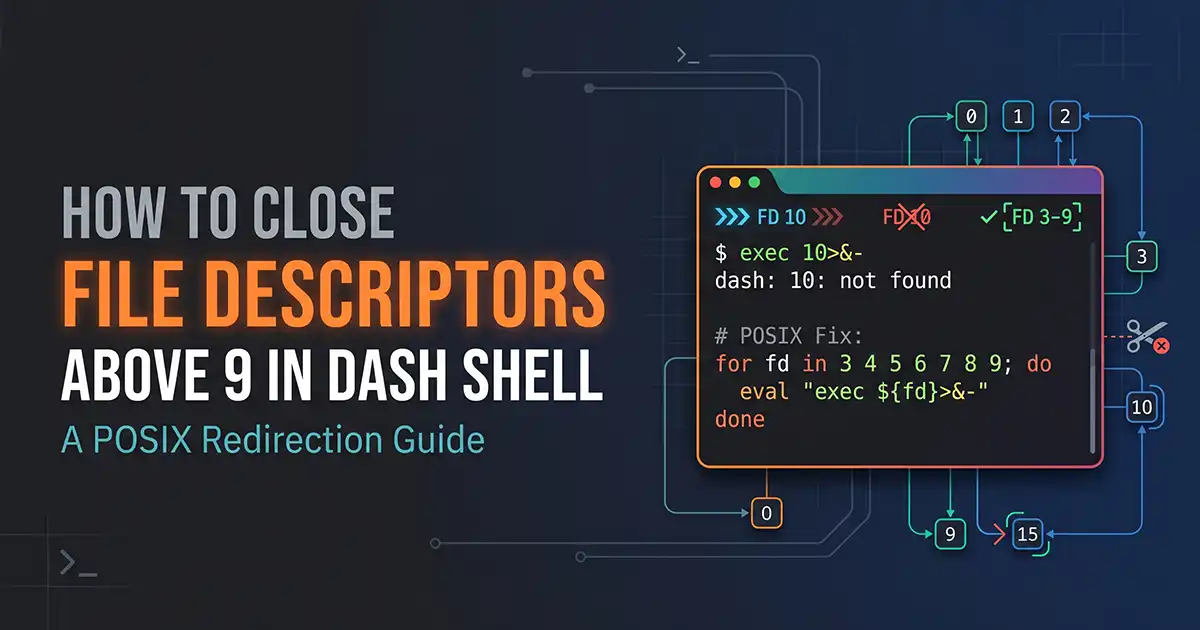
How to Close File Descriptors Above 9 in Dash Shell
Attempting to close a file descriptor above 9 in Dash using exec 10<&- results in a 10: not found error because Dash's POSIX lexer only recognizes single-digit file descriptors (0–9) in redirection operators. This guide explains the exact parser limitation, why FDs 10+ are reserved for internal shell state, and how to safely close inherited file descriptors using close_range, Python, or Perl wrappers.

How to Install Vagrant on Ubuntu 24.04
Complete tutorial to install Vagrant on Ubuntu 24.04 LTS using official HashiCorp repositories, with VirtualBox provider and Vagrantfile workflows.

How to Install R on Ubuntu 24.04
Step-by-step guide to install R on Ubuntu 24.04 LTS from the official CRAN repository, configure build toolchains, and install statistical packages.

How to Make a Minecraft Server on Ubuntu 24.04
Complete guide to make a Minecraft server on Ubuntu 24.04 LTS using PaperMC, OpenJDK 21, systemd background service, UFW firewall, and automated backups.

How to Install and Use Curl on Ubuntu 24.04
Comprehensive tutorial to install and use curl on Ubuntu 24.04 LTS with practical examples for HTTP requests, file downloads, headers, and API debugging.

How to Install PDO Extension in PHP
PHP Data Objects (PDO) is one of the most important extensions in PHP for working with databases in a secure, consistent, and modern way. If you are building dynamic websites, APIs, CMS platforms, or enterprise applications, PDO is not opti...

How To Run XAMPP and IIS Together On the Same Machine
How to run XAMPP and IIS together on the same machine? Well, working together on both IIS & XAMPP can really be a tricky task for beginners. The main aim of this article is to help beginners to get XAMPP Apache Server and IIS server works t...

15+ Best Websites for Free Stock Videos (2026)
In 2026, high-quality visual content remains the backbone of successful digital storytelling, marketing, and online engagement. Whether you’re a filmmaker, YouTuber, digital marketer, business owner, or student, access to free stock videos ...

How To Install Nginx on Ubuntu Server: 4 Simple Steps
This guide covers an easy to follow, step-by-step guide on how to install Nginx on Ubuntu Server 18.04 LTE, 16.04, and 14.04. While writing this tutorial I used Ubuntu 18.04 LTE though these resources in the tutorial are useful in installin...

How to Create a Sticky Navbar in HTML & CSS: 2 Easy Steps
Creating a sticky navbar is a simple yet highly effective way to enhance the user experience of your website. A sticky navbar stays visible at the top of the page as users scroll down, providing easy access to navigation links without requi...
Join the Conversation & Perspective
Have thoughts, counterpoints, or reflections on this story? Engage directly with fellow readers and editorial contributors.
No comments on this guide yet. Be the first to share your thoughts or ask a question!